
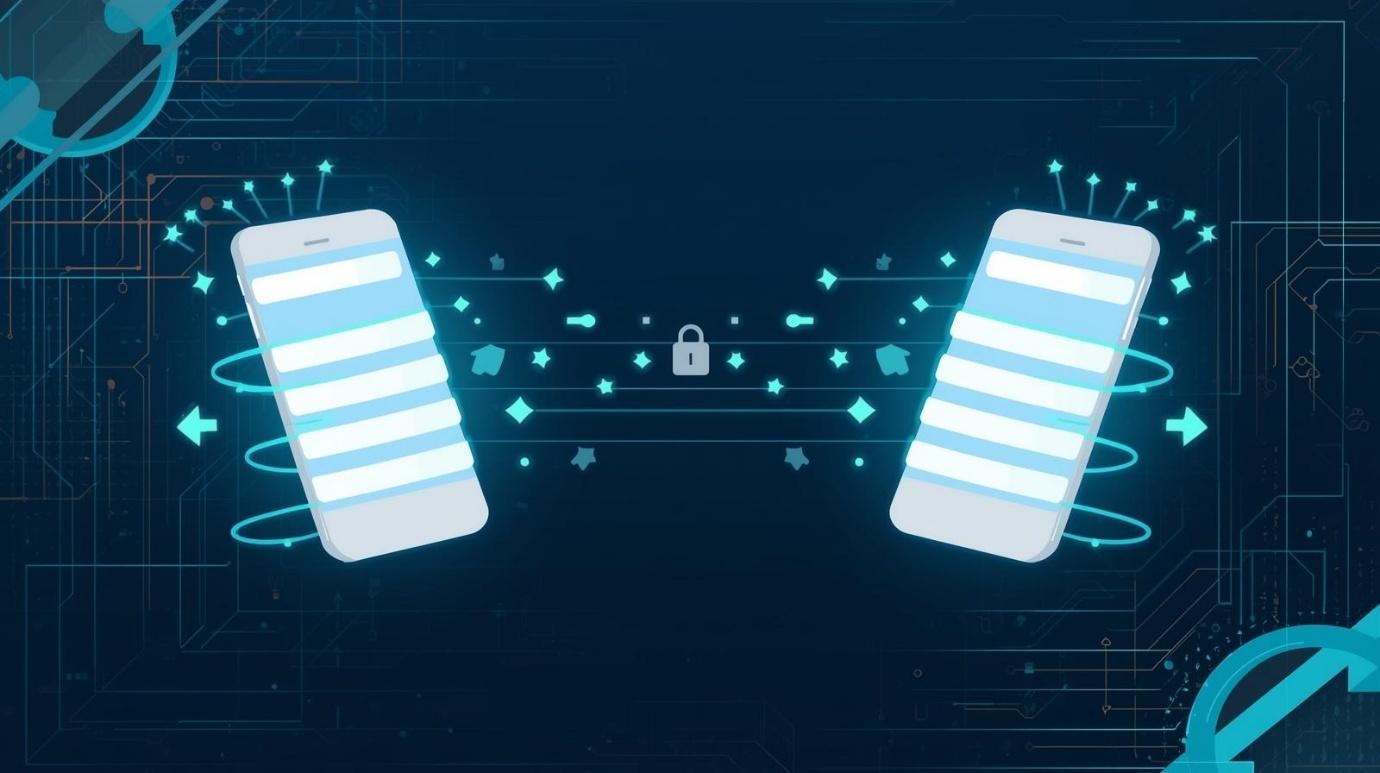
Upgrading to a new Android phone is exciting, but losing your photos, contacts, or chats can ruin the fun. This detailed guide walks you through safe, easy methods to move everything without hassle, tailored for Indian users on budgets from Flipkart to premium picks.
Why Safe Data Transfer Matters
Losing data during a switch happens more often than you think—battery drain, interrupted Wi-Fi, or overlooked backups cause 30% of issues. Google’s wireless method transfers contacts, apps, messages, and photos directly, keeping your info encrypted end-to-end. Always back up first to avoid tears, especially with family pics or work WhatsApp chats.
Prioritize official tools like Google One or Samsung Smart Switch for security; third-party apps risk malware, common in India where fake transfer apps flood Play Store. Expect 1-2 hours for 50GB data on good Wi-Fi.
Prep Your Old Phone Fully
Charge both phones to at least 70%—low battery halts transfers midway. Update your old Android to the latest version via Settings > System > System Update; this fixes transfer bugs in Android 15/16.
Turn off VPNs and auto-join Wi-Fi on old phone to prevent disconnects. Free up space by deleting junk: Settings > Storage > Clean up. Note app logins—many require re-verification post-transfer.
Back up manually now. Go to Settings > Google > All services > Backup > Back up now. This saves contacts, SMS, app data, and settings to Google Drive (15GB free).
Method 1: Wireless During Setup (Easiest)
Google’s built-in tool shines for most users—fast, no cables needed. Start new phone setup until “Copy apps & data.”
- Connect old phone nearby on same Wi-Fi; new phone shows QR code—scan with old camera.
- Sign in Google account on new phone; select data types: apps, photos, videos, messages.
- Tap Copy—transfers in background while you finish setup.
Pros: Handles 100GB+ securely; restores Wi-Fi passwords too. Cons: Needs strong Wi-Fi (Jio 5G ideal in India). Time: 30-90 mins. Stuck? Restart and retry—90% fix.
Method 2: Cable Transfer for Speed
Use USB-C cable for direct, reliable move—best if Wi-Fi is spotty. During new phone setup at “Copy apps & data,” choose cable option.
- Plug cable into both (old as sender).
- Old phone prompts “File transfer/USB debugging”—allow.
- Select items: deselect junk to speed up.
Great for large media libraries; keeps screen on option prevents locks. Samsung users: Smart Switch app enhances this, adding call logs.
Method 3: Cloud Backup Restore (No Old Phone?)
Perfect if old phone is dead—use Google backup anytime. On new phone setup, pick “Can’t use old phone?” > “A backup from the cloud.”
- Sign Google account; pick latest backup.
- Restore apps, settings, SMS automatically.
Free up to 15GB; upgrade to Google One (₹130/month for 100GB, popular in India). WhatsApp? Separate Google Drive backup via app settings.
| Method | Time for 50GB | Needs Old Phone? | Best For |
|---|---|---|---|
| Wireless | 45-90 mins | Yes | Contacts, apps |
| Cable | 20-60 mins | Yes | Videos, photos |
| Cloud | 30-60 mins | No | Full restore |
WhatsApp Chats: Special Safe Steps
WhatsApp holds 80% of Indian chats—don’t skip. On old phone: WhatsApp > Settings > Chats > Chat backup > Back up to Google Drive (daily).
New phone: Install WhatsApp, verify number, tap Restore when prompted. Media downloads later via Wi-Fi. Local backup alternative: Copy /WhatsApp/Databases/msgstore.db.crypt14 to new phone pre-install.
Pro tip: Enable 2FA first for security.
Photos and Videos Without Limits
Google Photos syncs unlimited (compressed) or original quality with storage. App > Library > Back up now. Restore auto on new phone.
Alternatives: Quick Share (formerly Nearby Share) for direct Wi-Fi transfers—select photos > Share > Quick Share > Nearby device. Or USB to PC: Phone > File Transfer mode > Drag to Windows folder.
For 100GB+ libraries, split into batches to avoid crashes.
Apps, Contacts, and Settings
Contacts sync via Google automatically—Settings > Accounts > Google > Sync. Apps reinstall from Play Store during restore; data pulls from cloud if backed up.
Samsung? Smart Switch transfers more, like home screen layout. Check post-transfer: Play Store > My apps > Library for missing ones.
PC/Laptop Backup Option
No direct phone access? Use PC for safety net. Connect old phone USB > File Transfer > Copy DCIM (photos), WhatsApp folders to PC.
Tools: Google Drive web upload or Samsung Smart Switch PC version (free). Restore by dragging back or cloud upload. Ideal for Kerala rains when Wi-Fi fails!
Common Pitfalls and Fixes
Transfer stuck hours? Factory reset new phone, select less data. “Try another cable”? Swap USB-C. Battery died? Wireless charge both.
India-specific: Jio/Airtel VPNs interfere—disable. Test restore on emulator if paranoid, but Google’s encryption is bank-level.
Post-transfer: Run antivirus like Quick Heal; re-enable biometrics.
Verify and Secure New Setup
Boot new phone: Check Gallery, Messages, WhatsApp. Run Settings > Security > Play Protect scan.
Update all apps; set PIN/Fingerprint. Enable Find My Device for safety.
Final Thoughts for Smooth Switch
Follow these, and your new Android feels like home instantly. Start with wireless for simplicity—over 70% success rate. Budget phones like Realme or premium Pixels all support it.
- Google Android data transfer
- WhatsApp backup guide
- Samsung Smart Switch
- Google One storage India
- Quick Share Android
- Best Air Coolers Under ₹10,000 on Amazon India (2026)
- Cold Showers, Fasting, Dopamine Detox: What Actually Works?
- Nike Sneakers at Crazy Prices on Amazon India March 2026 Deals You Cannot Miss
- Top 10 Trending Kitchen & Home Appliances on Amazon India
- Top 10 Trending Beauty Products on Amazon India, March 2026
About the Author